How to Sign In With Email in Floor Is Lava
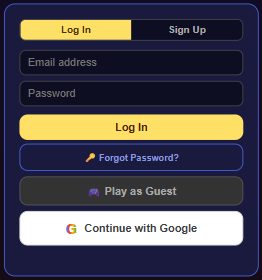
Open Settings > Account > Create Account / Sign In, then choose Sign Up if you're new or Log In if you already have an account. Forgotten your password? There's a reset link on the same screen.
What it does
The email sign-in screen has two tabs. Sign Up asks for a nickname (this is what appears on the leaderboard), your email address, and a password of at least 6 characters. Log In just asks for your email and password. Signing up this way turns your guest progress into a permanent account — your coins, best score, and story progress carry over automatically, nothing is lost.
How to sign in or create an account
Creating a new account:
- From the home screen, tap the gear icon (Settings).
- In the Account panel, tap Create Account / Sign In.
- Select the Sign Up tab.
- Enter a nickname, your email address, and a password (6 characters minimum).
- Tap Create Account.
Logging back into an existing account:
- Tap the gear icon (Settings), then Create Account / Sign In.
- Select the Log In tab.
- Enter your email address and password.
- Tap Log In.
Forgot your password:
- On the Log In tab, enter your email address first.
- Tap Forgot Password?
- Check your inbox for the password reset email and follow the link.
Changing your password (while logged in)
This is different from the "Forgot your password" flow above — it's for when you're already signed in and just want to set a new password, no email link required.
- Tap the ⚙️ gear icon in the top nav bar to open Settings.
- In the Account panel, tap Change Password.
- Enter a new password (6 characters minimum) and tap Confirm New Password.
This option only appears for email-linked accounts — if you signed in with Google and have no password set, there's nothing to change here. If it's been a while since you last logged in, Firebase may ask you to log out and back in first before it lets you set a new password, as a security check.
Verifying your email
When you create an email account, the game sends a verification link to your inbox. You can play right away and your progress is always backed up to your account either way — but verifying unlocks a few things. Settings > Account shows your Email status: a green "✅ Verified — leaderboards & cross-device sync on" once you're done, or an amber "⚠️ Not verified" until then.
Verifying your email unlocks a one-time 250 bonus coins, leaderboard posting, and syncing your progress across devices. Until you verify, you can still play and your progress is saved to your account — you just won't appear on leaderboards or sync to a second device yet.
- Open the verification email in your inbox and tap the link. (Check spam if it's not there.)
- Back in the game, open Settings > Account and tap ✅ I've verified — check now to refresh your status.
- Didn't get the email? Tap ✉️ Resend verification email on the same panel.
Google sign-in accounts are already verified automatically, so they never see this row.
Tips
- Use an email address you actually check — you'll need it if you ever have to reset your password.
- Passwords need to be at least 6 characters; the game will tell you if yours is too short.
- Seeing "An account with that email already exists"? You've already got an account — use Log In instead of Sign Up.
- Seeing "No account found with that email" or "Wrong password. Try again or use Forgot Password"? Double-check for typos, or use the password reset link.