How to Restore Purchases
Got a new device, or reinstalled the app? Restore Purchases re-applies any Premium Bundle or Remove Ads entitlement you've already paid for, without charging you again.
Where to find it
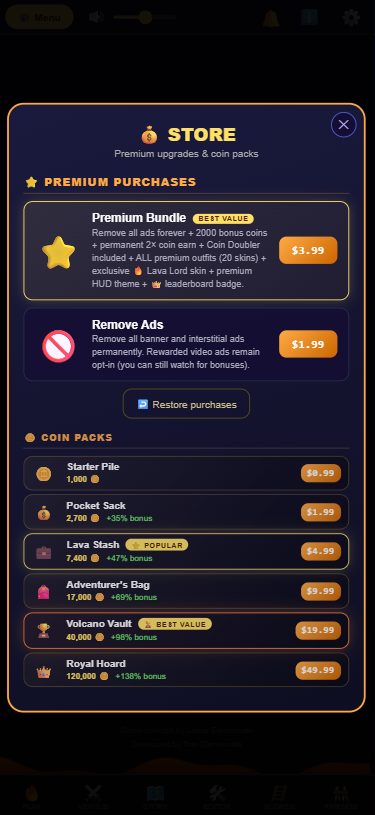
Restore Purchases lives in the Store screen, not in Settings — look for the "↩️ Restore purchases" button there.
How it works on Android
On Android, tapping Restore Purchases checks your Google Play Billing account and re-applies Premium and Remove Ads if you've bought either before.
How it works on web / PWA
On web, the button doesn't do a manual restore — instead it shows "💳 Restore is available in the Android app." Web purchases are tied to your signed-in account and are expected to sync back automatically once you're signed in on a new device, rather than through a manual restore step.
How to use it
- Open the Store from the home screen.
- Tap "↩️ Restore purchases."
- On Android, this re-applies any past purchase tied to your Google Play account.
- On web, make sure you're signed in on the same linked account you originally purchased with.
Tips
- Make sure you're signed into the same account (Google account on Android, or your linked account on web) you used for the original purchase — restore can't find purchases made on a different account.
- If a restore doesn't seem to apply, double-check you're not signed in as a guest — guest accounts don't carry purchase history between devices.