Floor Is Lava Mobile & Controls Settings
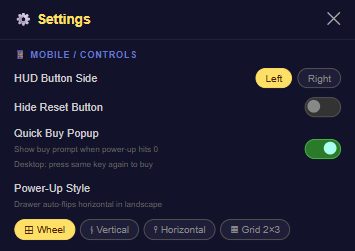
The 📱 Mobile/Controls section is where you fit the game to how you actually hold your phone — which side the HUD sits on, how power-ups are laid out, and a couple of quality-of-life toggles.
What's in this section
- HUD Button Side — Left (default) or Right, moves the on-screen HUD buttons to whichever thumb you use.
- Hide Reset Button — off by default; hides the Reset button from the HUD if you'd rather not have it on screen.
- Quick Buy Popup — on by default. Shows a buy prompt the moment a power-up hits 0 uses; on desktop, pressing the same power-up key again buys another instead of needing the popup.
- Power-Up Style — four layouts: ⊞ Wheel, ⫮ Vertical, ⫯ Horizontal, or ▦ Grid (2×3). The drawer automatically flips to a horizontal layout in landscape orientation regardless of your chosen style.
- Grid Position — Left or Right; only shown if you've picked the Grid power-up style, and sets which side the grid sits on.
How to change it
- Tap the ⚙️ gear icon in the top nav bar to open Settings.
- Scroll to the 📱 Mobile/Controls section.
- Set your HUD Button Side, Power-Up Style, and any of the other toggles.
- Changes apply immediately to your HUD.
Tips
- Left-handed? Switch HUD Button Side to whichever side feels natural — it's purely a comfort setting, no gameplay difference.
- If you keep accidentally buying power-ups you didn't mean to, try turning off Quick Buy Popup so it doesn't trigger automatically at 0 uses.
- Grid style is worth trying if you use several different power-ups per run and want them all visible at once rather than cycling a wheel.