Floor Is Lava Level Editor: Build & Share Levels Premium
The Level Editor lets Premium players design their own custom platform layouts and share them to the Community tab for other players to try.
What it does
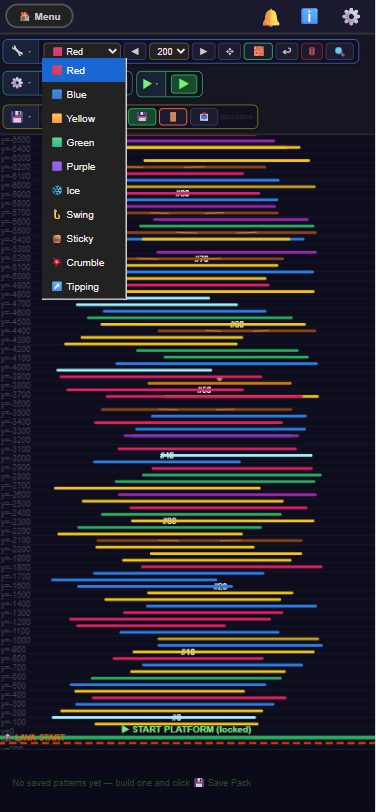
The Level Editor is a Premium-only feature — non-Premium players see a crown badge on it with a "Premium feature — unlock to use" tooltip. Its toolbar is split into four groups. Build tools let you place platforms one at a time: a dropdown picks the platform type — Red, Blue, Yellow, Green, Purple, or one of the five hazard types (Ice, Swing, Sticky, Crumble, Tipping) — plus width steppers, a Move tool to reposition existing platforms, the Block Pattern tool to stamp repeating rows with adjustable gaps (0-3 blank rows), Undo, Clear All, and a Zoom toggle.
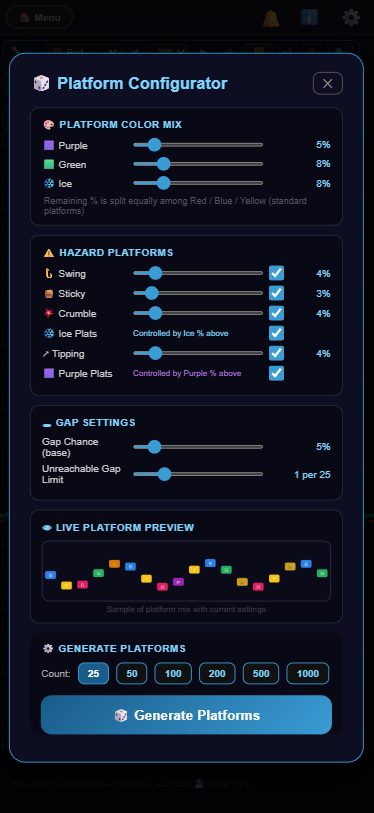
There is a dedicated hazard-authoring tool: the Platform Configurator (the 🎲 button under Generate tools). It opens a panel with percentage sliders for every platform type — Purple, Green, Ice, Swing, Sticky, Crumble, Tipping — plus a base Gap Chance and an Unreachable Gap Limit, all shown in a live preview strip. Pick a batch size (25 up to 1000 platforms) and hit Generate Platforms to stack that many auto-generated platforms above your existing ones, then either Keep the batch or Discard it to revert to exactly how the level looked before generating (any platforms you placed by hand are never touched). A separate Test/Play tab lets you play through the level as-is before saving.
Finished levels can be exported and imported as JSON files, deleted, or marked Repeatable so they show up randomly during regular endless play. If you're signed in on a linked (non-guest) account, you can also post a level to the Community tab — posting again later updates that same listing rather than creating a duplicate. There's a separate My Levels tab for tracking what you've built versus what's posted publicly.
How to use it
- Unlock Level Editor by purchasing the Premium Bundle.
- Open Level Editor from the mode menu.
- Place platforms by hand with the Build tools (pick a type from the dropdown, adjust width, use Move/Undo/Clear as needed), or use the Block Pattern tool to stamp repeating rows.
- For bulk layouts, open the Platform Configurator (🎲), set your percentage sliders and gap settings, choose a batch size, and Generate Platforms — then Keep or Discard the result.
- Use the Test/Play tab to try the level, then save it, and optionally mark it Repeatable so it can appear during normal endless play.
- If you have a linked account, post it to the Community tab to share it with other players.
Tips
- Use the Platform Configurator for long or bulk layouts (up to 1000 platforms in one batch) instead of placing everything by hand — Discard reverts only the generated batch, so hand-placed platforms are always safe.
- Use the Block Pattern tool for shorter repeating stretches — it's faster than placing platforms one by one when you want manual control over the layout.
- You need a linked (non-guest) account to post to Community — guest levels can still be built and played locally, just not shared.
- Re-posting an updated version of a level replaces your existing Community listing instead of creating a second copy.